> ## Documentation Index
> Fetch the complete documentation index at: https://help.odia.app/llms.txt
> Use this file to discover all available pages before exploring further.
# Signup to Odia with Stripe subscriptions
> Create your organization, choose your seats and start your 14-day free trial with Stripe.
Follow this guide if you are creating a new organization with self-service billing. Have your business email and payment card ready. Subscription setup and seat changes are managed by the organization Owner.
The screenshots show example accounts and private test discounts. Use the price, currency and trial end date shown in your own checkout.
Open [Odia registration](https://odia.app/auth/register). Enter your **Business Email**, select **Continue**, then verify the code sent to your email.
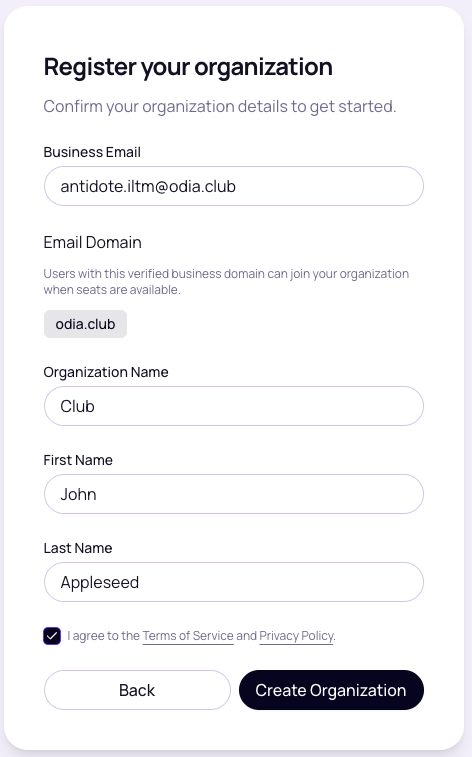
Enter your **Organization Name**, **First Name** and **Last Name**. Agree to the Terms of Service and Privacy Policy, then select **Create Organization**.
If your email belongs to an existing organization, you may see **Join Organization** instead. This guide follows the new organization flow.
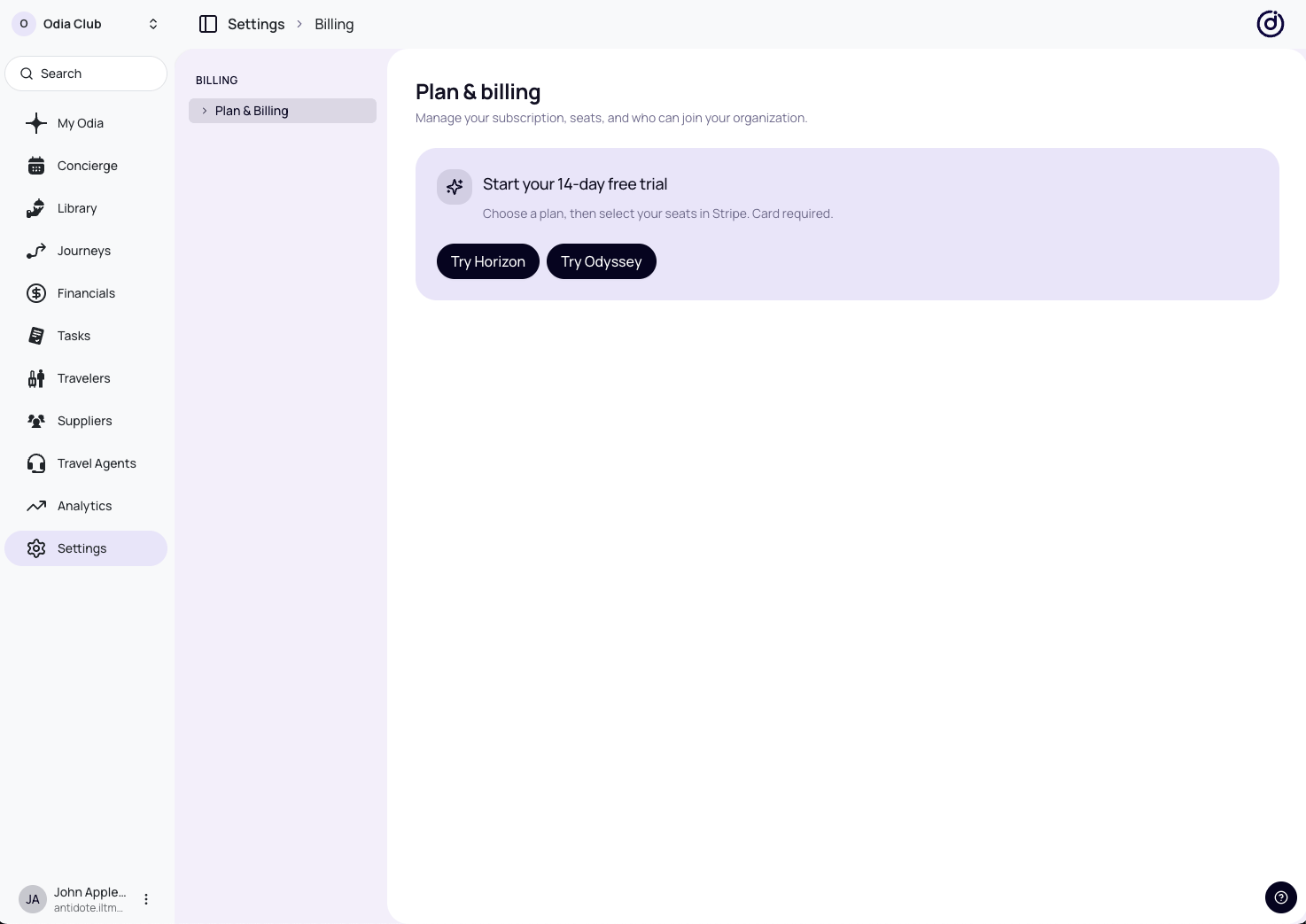
 In **Settings → Billing → Plan & Billing**, select **Try Horizon** or **Try Odyssey**. You will continue to Stripe to set up your trial.
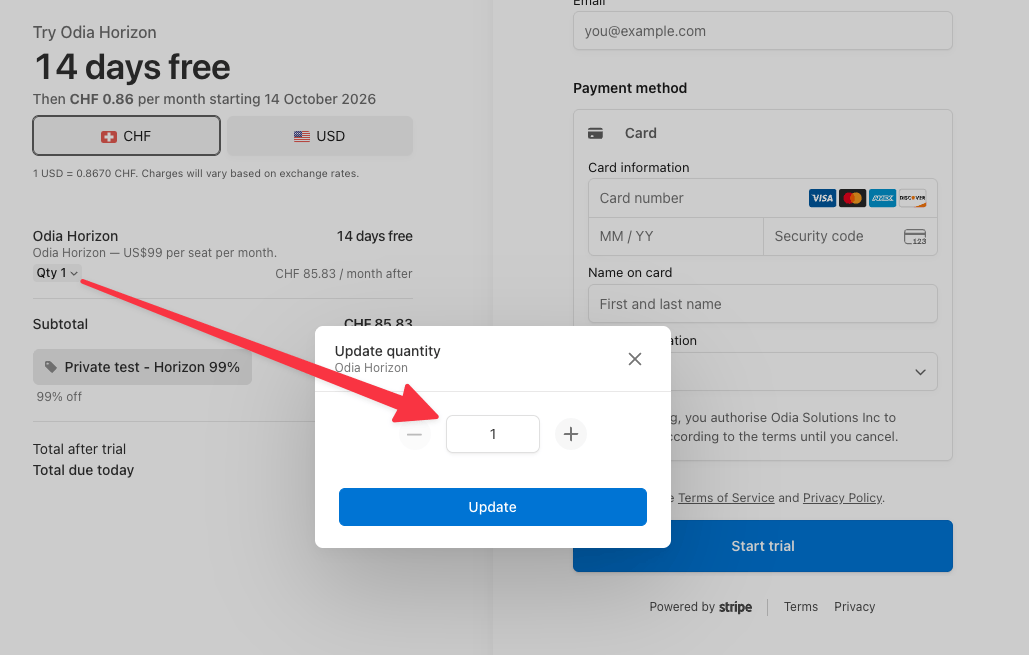
 In Stripe, select **Qty** under your plan. Set the number of seats you need, then select **Update**. A seat is a place for one person in your organization.
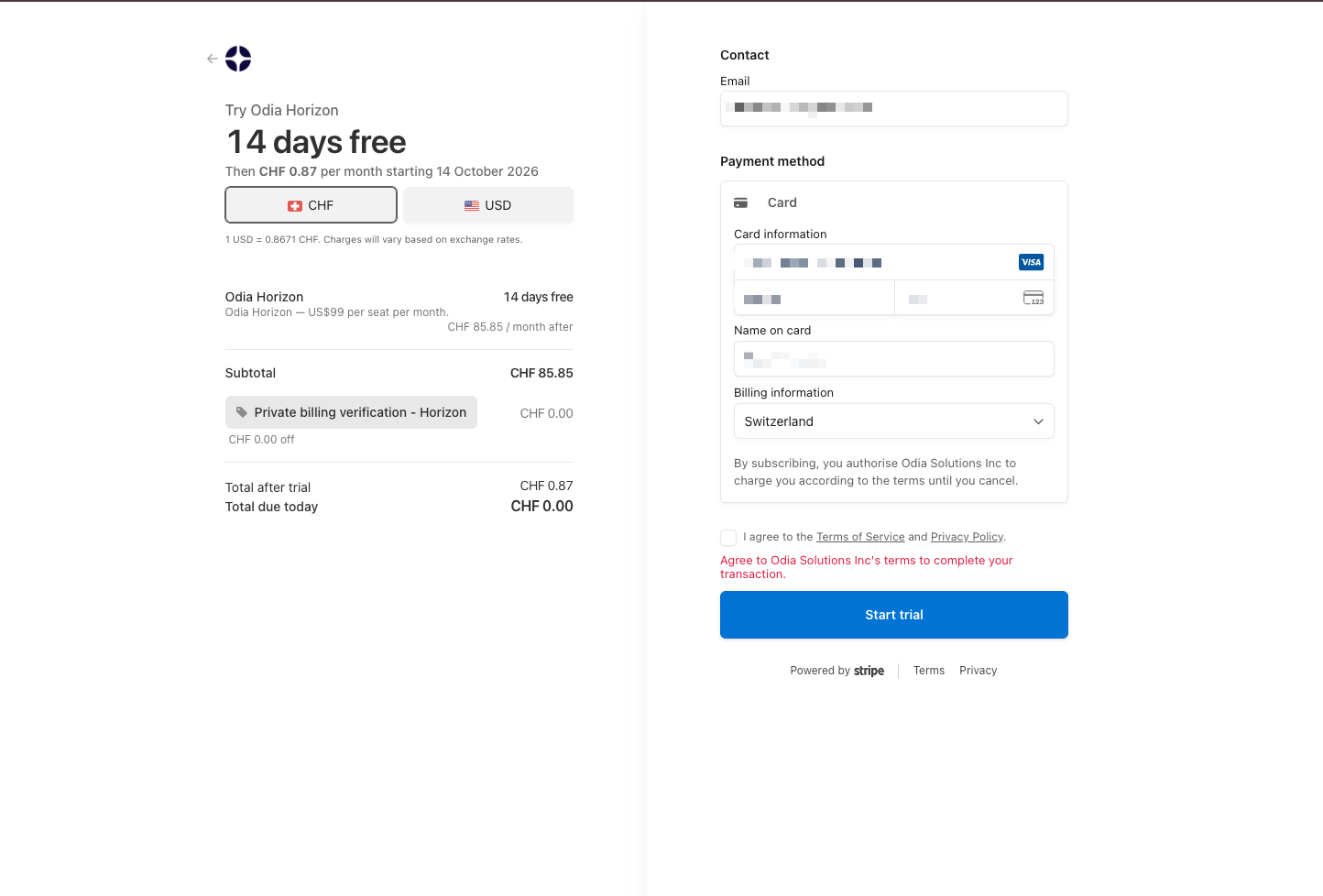
 Review your plan, seats, **Total due today** and price after the trial. Enter your contact email, card details and billing information.
Tick the terms checkbox, then select **Start trial**. The red message in the example reminds you to tick this checkbox before continuing.
Review your plan, seats, **Total due today** and price after the trial. Enter your contact email, card details and billing information.
Tick the terms checkbox, then select **Start trial**. The red message in the example reminds you to tick this checkbox before continuing.
 You will return to Odia and see **Activating your plan…** while your plan and seats are confirmed. Wait for this step to finish.
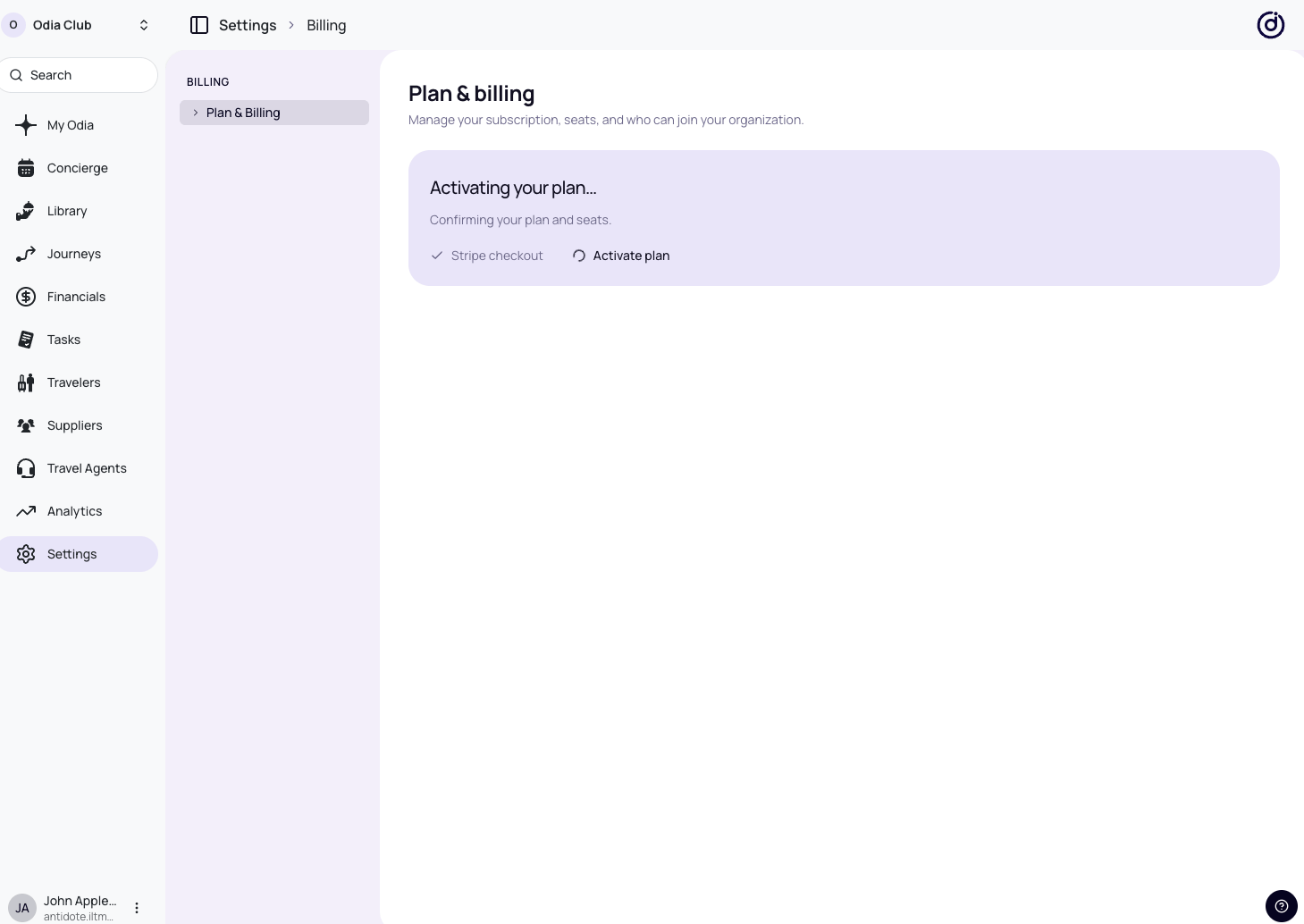 When **Free trial** appears, your trial is active. Check your trial end date and seat count, then select **Start exploring**.
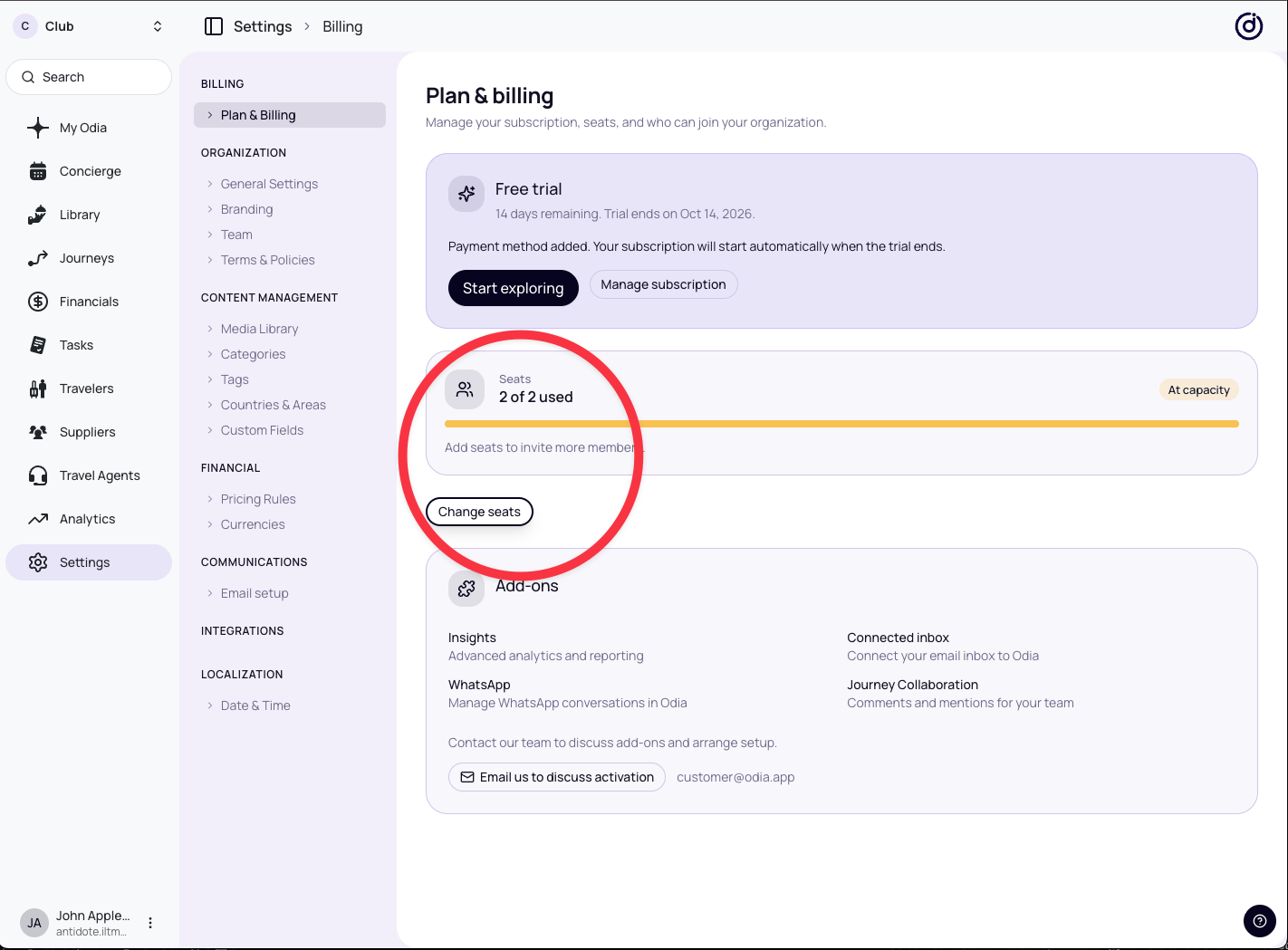 With a payment method added, your subscription starts automatically when the trial ends. Review your checkout total before starting the trial. Use **Manage subscription** in **Plan & Billing** to manage your subscription.
## Change seats as your team grows
As the organization Owner, you can change seats at any time during your free trial or while your paid subscription is active. When new people join your team, add seats if you need more capacity.
Return to **Settings → Billing → Plan & Billing** and select **Change seats**, highlighted in the previous screenshot.
1. Set **Number of seats**, then select **Continue**.
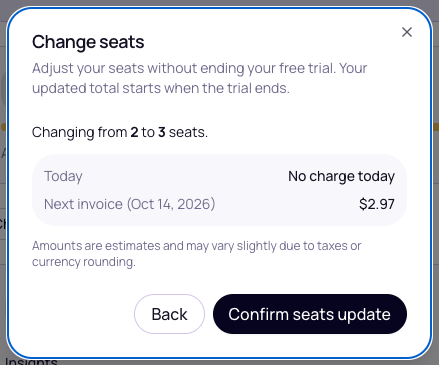
2. Review the new seat count, today's charge and the next invoice estimate.
3. Select **Confirm seats update** to apply the change.
* **During your free trial:** no immediate charge. The updated total starts when the trial ends.
* **On a paid subscription:** adding seats creates a prorated charge for the remaining billing period. Reducing seats applies a prorated credit to your next regular invoice.
You cannot reduce the seat count below your active member count or the plan minimum.
The example below shows a seat change during a free trial. Your confirmation shows the charges for your own subscription.
With a payment method added, your subscription starts automatically when the trial ends. Review your checkout total before starting the trial. Use **Manage subscription** in **Plan & Billing** to manage your subscription.
## Change seats as your team grows
As the organization Owner, you can change seats at any time during your free trial or while your paid subscription is active. When new people join your team, add seats if you need more capacity.
Return to **Settings → Billing → Plan & Billing** and select **Change seats**, highlighted in the previous screenshot.
1. Set **Number of seats**, then select **Continue**.
2. Review the new seat count, today's charge and the next invoice estimate.
3. Select **Confirm seats update** to apply the change.
* **During your free trial:** no immediate charge. The updated total starts when the trial ends.
* **On a paid subscription:** adding seats creates a prorated charge for the remaining billing period. Reducing seats applies a prorated credit to your next regular invoice.
You cannot reduce the seat count below your active member count or the plan minimum.
The example below shows a seat change during a free trial. Your confirmation shows the charges for your own subscription.
 Need help? Email [customer@odia.app](mailto:customer@odia.app).
This documentation is built and hosted on [Mintlify](https://mintlify.com), a developer documentation platform.
Need help? Email [customer@odia.app](mailto:customer@odia.app).
This documentation is built and hosted on [Mintlify](https://mintlify.com), a developer documentation platform.