

Overview
Invoice Creation
Payment Tracking
Invoice Management
Creating Invoices
Creating Invoices
Confirm Journey
Generate Invoice
- Navigate to the confirmed Journey
- Click the invoice/billing button
- Create invoice - all line items (services) are automatically populated
Review Details
- Customer/traveller information
- Service line items and amounts
- Payment terms and due date
- Any additional notes or terms
Send or Download
- Send to client via email (PDF attachment)
- Download as PDF for manual distribution
Invoice List View
Invoice List View
- Invoice numbers - Auto-generated unique identifiers
- Recipient names - Traveller, travel agent, or supplier billed
- Issue and due dates - When invoice was created and when payment is due
- Total amounts - Full invoice amount
- Payment status - Draft, Sent, Partially Paid, Paid, Overdue, or Cancelled
- Summary statistics - Total invoices, total amounts, outstanding balances
- Click any invoice row to view full details
- Use search and filters to find specific invoices
- Bulk select for batch operations
Editing Invoices
Editing Invoices
- Update customer information - Name, contact, billing address
- Adjust line items - Add, remove, or modify services
- Change payment terms - Net 15, Net 30, custom terms
- Modify due dates - Extend or shorten payment timeline
- Add notes or terms - Payment instructions, terms & conditions
- You can edit invoices in “Draft” status freely
- For “Sent” invoices, edits create a new version
Supplier Commission Invoices
Supplier commission invoices bill a supplier for commission they owe your organisation. This is the opposite of a supplier bill or purchase invoice, where your organisation owes the supplier.Open the commission row
Create the invoice
Review the recipient and lines
Manage collection from the invoice
Invoice Details
Every invoice contains:Basic Information
- Invoice number - Auto-generated unique ID
- Issue date - Date invoice was created
- Due date - Payment deadline
- Reference to Journey - Link to source trip
Customer Details
- Customer name - Who is being billed (traveller or agency)
- Contact information - Email, phone
- Billing address - Full address for payment
- Email for delivery - Where to send the invoice
- Show/hide organization - Toggle organization name visibility
Line Items
- Service descriptions - Name and details of each service
- Individual amounts - Price per service
- Quantities - Number of participants (pax) if applicable
- Subtotals and totals - Calculated automatically
Bundles on Invoices
When a customer invoice includes a bundle configured as one client service, Odia saves one package line using the bundle title and combined eligible amount. The member services continue to hold their own pricing, costs, suppliers, and commission details.- Customer invoice, public link, PDF, and QuickBooks use the saved package line
- Supplier invoices remain itemized by service
- Client-direct member services do not add a customer amount
- Older or itemized bundles continue to show their member service lines
Line Item Descriptions
Add descriptions to individual line items on your invoices. Descriptions appear below each service name on the PDF and public invoice link, giving your clients more context about what they’re paying for.Automatic Descriptions from Settings
Automatic Descriptions from Settings
Open Invoice Settings
Choose a Source
- None — No automatic descriptions (default)
- Headline — Copies the service headline
- Additional Information — Copies the “Additional information” field from each service
Create an Invoice
Adding Descriptions Manually
Adding Descriptions Manually
- Open the invoice in edit mode
- Hover over a service line item and click the description dropdown
- Choose Custom description, Use headline, or Use additional info
- Edit the text as needed (max 500 characters)
- Click the X button next to the description to remove it
Change Detection
When you edit an existing invoice, the system checks whether any services have been updated on the Journey since the invoice was last saved. If something changed, you’ll see an “Updated” badge on the affected line items.What Gets Detected
What Gets Detected
- When you save an invoice, the system takes a snapshot of each service’s price and description source
- Next time you open the invoice for editing, it compares the snapshots against the current Journey data
- Any differences show an “Updated” badge next to the service name
- Hover over the badge to see exactly what changed (e.g., “Price changed: 600”)
What to Do When You See Updates
What to Do When You See Updates
- Accept the changes — Simply save the invoice. The new prices and descriptions become the new snapshots.
- Keep the original values — If you prefer the original price on the invoice, no action needed. The public invoice and PDF will continue showing the price that was locked when you last saved.
- Review first — Hover over each “Updated” badge to understand what changed before deciding.
How Price Locking Works
How Price Locking Works
- When you create or save an invoice, each service’s price is captured as a snapshot
- The public invoice link and PDF export always use these saved prices — not the live Journey prices
- If someone changes a service price on the Journey, your invoice stays unchanged until you explicitly save it again
- This ensures your client always sees the price you approved
Invoice Currency
Choose the display currency for your invoice totals using the currency selector in the invoice header.Currency Selector
Currency Selector
- The system automatically detects and defaults to the common currency when all services share the same selling currency
- If services have mixed currencies, no default is set
- Use the currency dropdown in the invoice header to change the display currency
- Select from currencies configured in your organization settings
- Invoice total displayed in the editor
- PDF export
- Public invoice view (if shared with clients)
Organization Display
Control whether the organization name appears on invoices when a billing contact is linked to an organization.Show/Hide Organization Name
Show/Hide Organization Name
- Open the invoice in edit mode
- Find the “Show organization name” toggle in the billing section
- Toggle on to display the organization name
- Toggle off to show only the contact name
- Invoice editor preview
- PDF export
- Public invoice view
- Show organization: When billing a travel agency or corporate client where the company name should appear
- Hide organization: When billing an individual traveller who happens to be linked to an organization but should receive a personal invoice
Invoice Status
Status Types
Status Types
- Use the invoice actions to update lifecycle statuses such as Sent or Cancelled
- “Overdue” status is automatically applied after due date
- “Paid” is applied automatically as soon as payments cover the invoice in full
- “Partially Paid” is applied automatically to invoices that have been marked as Sent
Status Filtering
Status Filtering
- Click the Status filter button in the toolbar
- Select one or more statuses to filter by (multi-select)
- A badge shows how many status filters are active
- Click Clear Filters to reset and show all invoices
Status Management
Status Management
- Mark as “Sent” after emailing to client
- Use Mark as Paid to create a payment for a positive outstanding balance
- Mark as “Cancelled” when the invoice is no longer valid
- Change due date if payment terms are renegotiated
- Status changes to “Overdue” automatically when due date passes
Cancelled vs Archived
Understanding the difference between cancelling and archiving an invoice is important — they serve different purposes and have different effects on your financial data.When to Cancel an Invoice
When to Cancel an Invoice
- The client cancelled the trip or services
- Services will no longer be delivered
- The invoice was sent with wrong details and you want to keep a record of it
- You created a new corrected invoice and need to void the old one
- Invoice status changes to “Cancelled”
- The invoice stays visible in your list (filterable by “Cancelled” status)
- Cancelled invoices are still part of your business data — they appear in analytics as cancelled records
- Payments on cancelled invoices are excluded from financial calculations
- Cancellation is permanent — you cannot undo it (create a new invoice instead)
When to Archive an Invoice
When to Archive an Invoice
- You created a test invoice while learning the system
- A duplicate invoice was created by mistake
- You want to clean up old paid invoices from your active list
- The invoice was started but you want to start fresh with a new one
- Invoice is hidden from your default invoice list
- Archived invoices are excluded from all financial calculations (collected amounts, analytics)
- You can restore an archived invoice at any time
- Use the archive toggle on the invoices list to view archived invoices
Quick Reference
Quick Reference
- If it’s a real business event (client cancelled) → Cancel it
- If it’s cleanup (test data, mistake, duplicate) → Archive it
Extra Services Management
Add additional services or charges to invoices outside of the main Journey:Adding Extra Services
Open Invoice
Add Extra Service
Enter Details
- Service Name (e.g., “Travel Insurance”, “Visa Processing”)
- Description
- Quantity
- Unit Price
- Currency
Save
Managing Extra Services
Edit Extra Service:- Click the edit icon next to the service
- Update any field
- Click Save Changes
- Click the delete icon
- Confirm deletion
- Service is removed from invoice
Use Cases
Common extra services:- Travel insurance policies
- Visa processing fees
- Airport transfers not in Journey
- Special requests or add-ons
- Admin fees or booking charges
- Currency conversion fees
Filtering & Search
Find invoices quickly using search and filters:Search Capabilities
- Invoice number - Exact invoice ID
- Customer name - Traveller or agency name
- Associated Journey - Original Journey reference
- Date ranges - Issue date or due date
Filter Options
- Status - Draft, Sent, Partially Paid, Paid, Overdue, Cancelled (multi-select)
- Date range - Issue date or due date ranges
- Amount range - Minimum/maximum invoice amounts
- Archive toggle - Show or hide archived invoices
Payment Management
Payment Instructions
Payment instruction profiles let you save reusable payment wording for different bank accounts, currencies, or payment methods, then choose the instructions that belong on each invoice.Create and manage payment instruction profiles
Open Payment Instructions
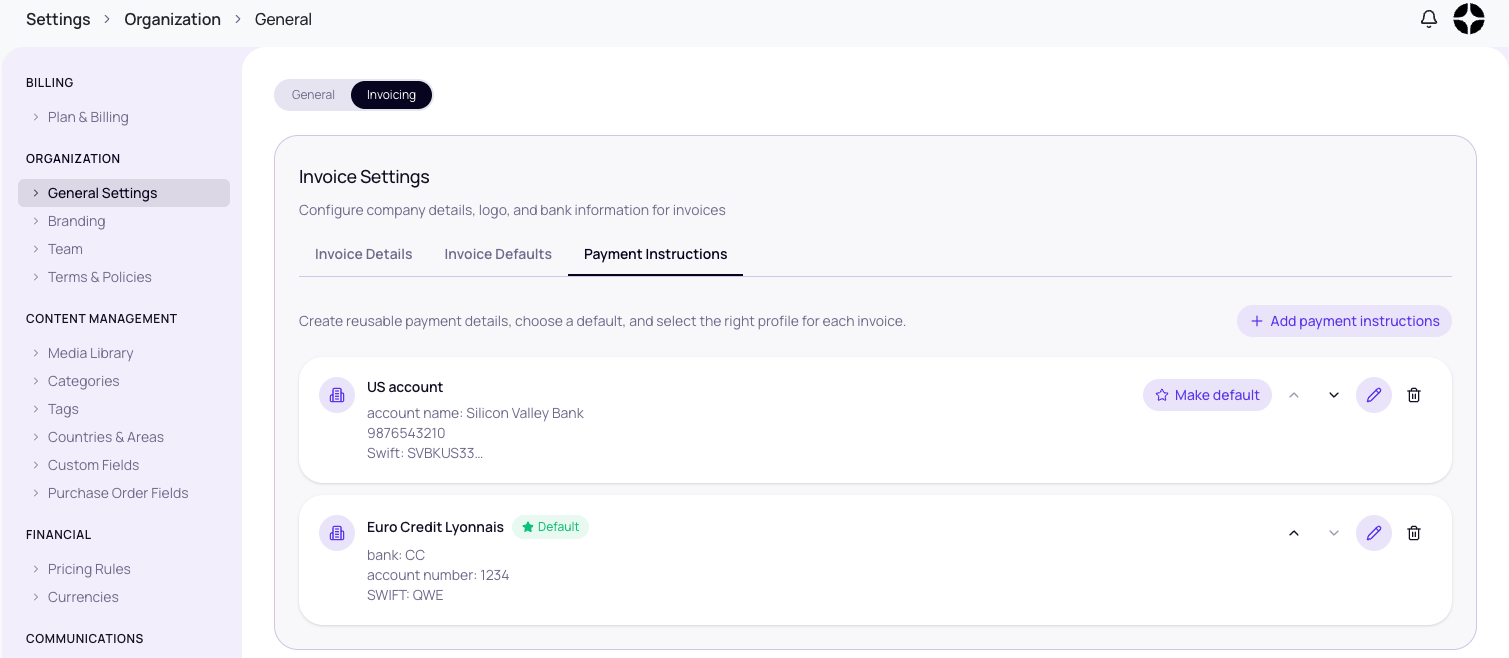
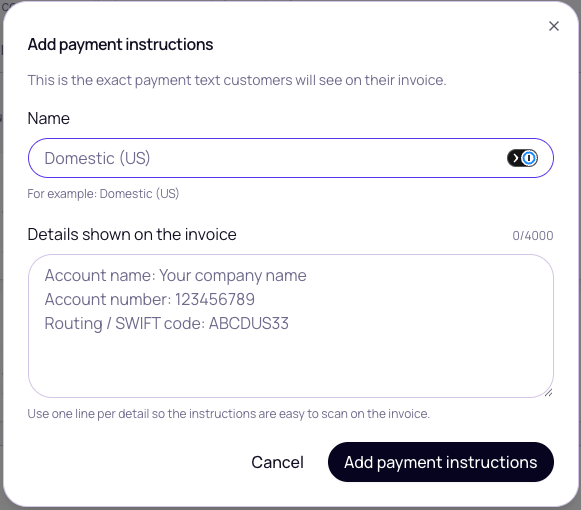
Add a profile
- Name — the heading your client will see, such as “Domestic transfer” or “International wire”
- Details shown on the invoice — the account details, reference instructions, or other payment wording your client needs
Choose the default and display order
Save the settings
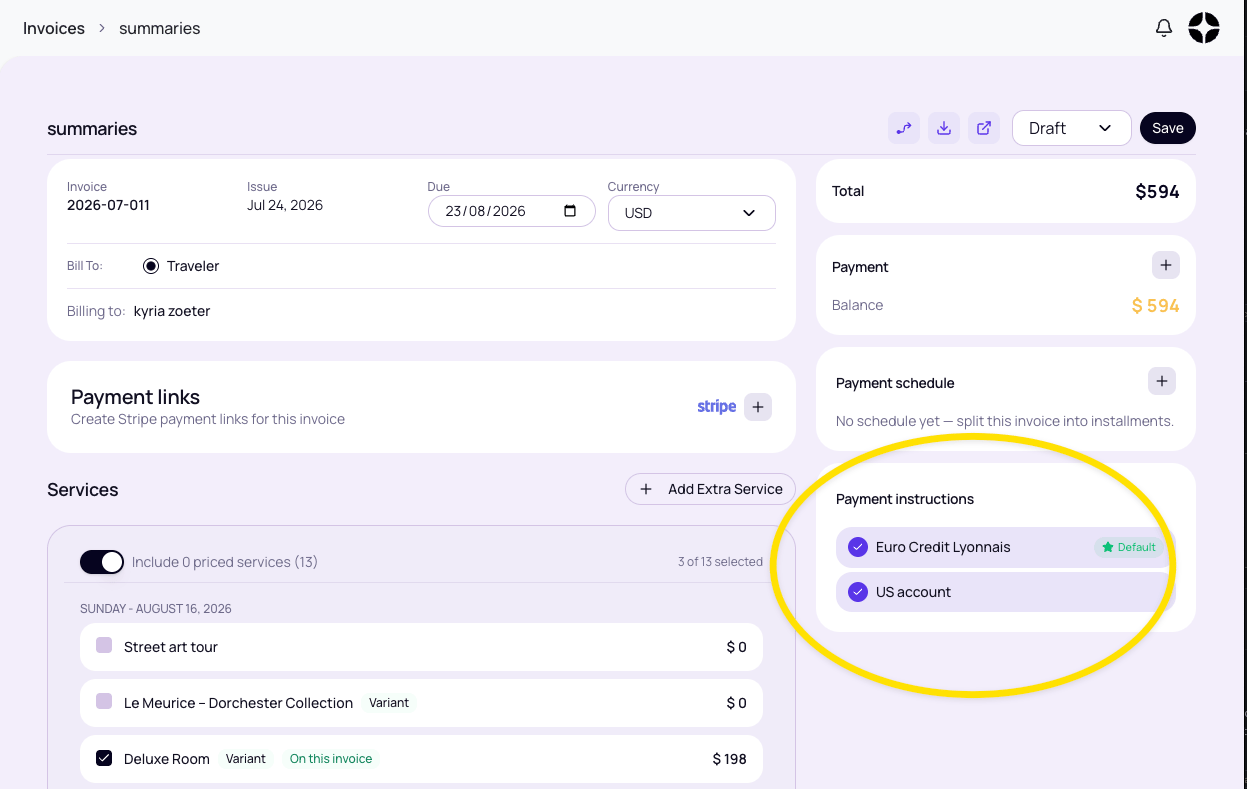
Choose payment instructions for an invoice
Create or open a draft invoice
Review the selected profiles
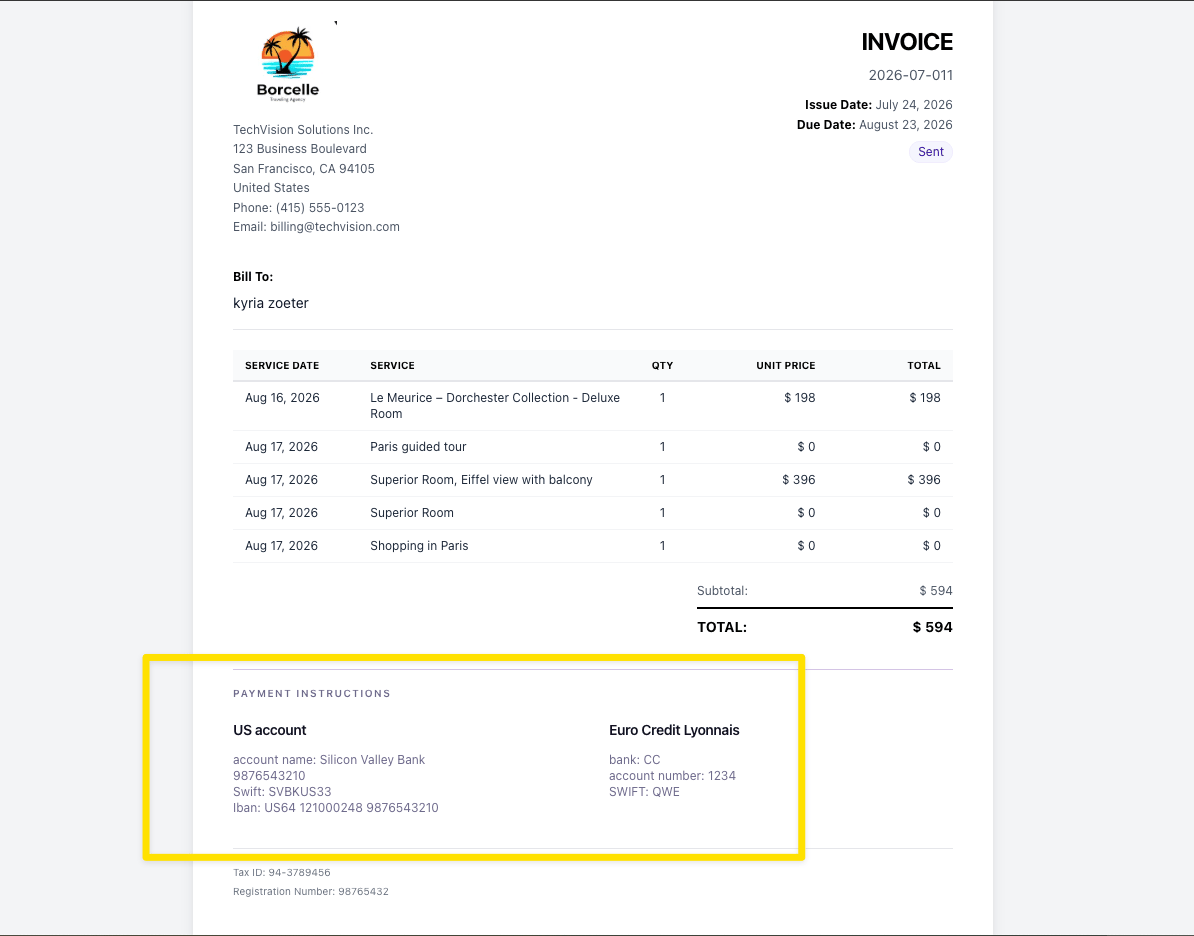
Choose what the client should receive
Save and issue the invoice
Record Payment
Mark as Paid
Recording Individual Payments
How to Record a Payment
How to Record a Payment
Open Invoice
Click Record Payment
Enter Payment Details
- Payment Context - Invoice total, amount already paid, and remaining balance
- Payment Amount - Enter the amount received (can be partial or full payment)
- Payment Date - Select when the payment was received (defaults to today)
- Notes (Optional) - Add transaction ID, payment method, or other reference notes
Submit Payment
Quick Mark as Paid
Quick Mark as Paid
Open Action Menu
Select Mark as Paid
Automatic Processing
- Creates a payment record for the exact remaining balance
- Sets the payment date to today
- Adds a note “Marked as paid”
- Updates the invoice status to “Paid”
- You received full payment and don’t need detailed tracking
- Quick status updates for cash or simple transactions
- Batch processing multiple paid invoices
- Partial payments received
- Need to specify payment date other than today
- Want to add detailed payment notes or reference numbers
- Multiple payment methods or installments
Payment History & Display
Payment History & Display
- Unified Payment Tracker - Compact view with:
- Invoice total amount
- Total paid with progress bar
- Remaining balance highlighted
- Collapsible payment history list
- Quick access to record new payments
- Located below the services section on invoice edit page
- Shows all payments with:
- Payment date (formatted)
- Amount (currency formatted)
- Notes or reference information
- Delete button for each payment
- Payment status badge on each invoice
- Color-coded status indicators
- At-a-glance payment tracking
Payment Status Indicators
Payment Status Indicators
- Status updates happen instantly when you record or delete a payment
- Changing the invoice total recalculates the status against the recorded payments
- No manual status changes needed
- System calculates total paid vs. invoice total automatically
- Works seamlessly with partial payments
Managing Payments
Managing Payments
- Open the invoice in edit mode
- Find the payment in the payment history list or table
- Hover over the payment row to reveal the delete icon (trash can)
- Click delete and confirm
- The payment record is permanently removed
- Total paid is recalculated automatically
- Invoice status may change:
- If was “Paid” → reverts to “Sent” or “Partial”
- If was “Partial” → may revert to “Sent” if no other payments
- Remaining balance updates immediately
- Total amount paid is always visible in the payment tracker
- Payment count badge shows number of payments recorded
- Remaining balance is highlighted for easy visibility
- All individual payment details are preserved with dates and notes
Payment Terms Setup
Payment Terms Setup
- Due on receipt - Payment expected immediately
- Net 15 - Due in 15 days from issue date
- Net 30 - Due in 30 days (most common)
- Net 60 - Due in 60 days
- Custom terms - Specify your own timeline
- Late payment policies - Add notes about late fees
Payment Tracking Best Practices
Payment Tracking Best Practices
-
Record payments immediately when received
- Don’t wait - update as soon as payment clears
- Keeps your records accurate and current
- Makes it easier to track outstanding invoices
-
Use detailed payment notes
- Add transaction IDs, check numbers, or wire references
- Note payment method for your records
- Include any special conditions or arrangements
-
Leverage partial payment tracking
- Record deposits or installments as they come in
- Track multiple payments for large invoices
- Monitor progress toward full payment
-
Choose the right method
- Use “Record Payment” for partial payments or when details matter
- Use “Mark as Paid” for quick full-payment updates
- Consistency makes tracking easier
-
Review payment status regularly
- Filter by “Partially Paid” to identify invoices needing follow-up
- Check “Overdue” status for invoices past due date
- Use payment history for reconciliation and accounting
-
Date payments accurately
- Use the actual payment received date, not when you’re entering it
- Accurate dates help with cash flow reporting
- Important for tax and accounting purposes
Best Practices
Invoice Workflow
Invoice Workflow
-
Create invoices promptly after Journey confirmation
- Don’t delay - create while details are fresh
- Faster invoicing = faster payment
-
Review carefully before sending to clients
- Check all amounts and line items
- Verify customer contact information
- Ensure payment terms are correct
-
Set clear payment terms and due dates
- Be specific about when payment is due
- Include payment methods accepted
- Add late payment terms if applicable
-
Send reminders for upcoming due dates
- Friendly reminder 3-5 days before due date
- Follow up 1-2 days after if overdue
-
Track overdue invoices regularly
- Review overdue list weekly
- Have consistent follow-up process
-
Keep accurate records
- Update invoice status promptly when payments are received
- Export invoices regularly for accounting purposes
Organization Tips
Organization Tips
- Use consistent numbering - Auto-generated numbering recommended to avoid duplicates
- Include clear service descriptions - Make it obvious what traveller is paying for
- Add reference to Journey/Journey - Link back to trip details
- Include payment instructions - Bank details, payment methods, etc.
- Attach terms and conditions - Cancellation policy, payment terms, etc.
Invoice Actions
Common actions you can perform on invoices:Create
Edit
Archive
Send
Download
Update Status
Reporting
Summary Statistics
- Total invoices - Number of invoices created
- Total invoiced amount - Sum of all invoice amounts
- Outstanding balance - Amount not yet paid (Sent + Overdue)
- Paid to date - Total amount received
Custom Reports
- Date range - Invoices issued or due within specific dates
- Customer - All invoices for a specific traveller or agency
- Status - Draft, Sent, Partially Paid, Paid, Overdue, or Cancelled
- Amount ranges - Invoices above/below certain amounts
Permissions
Role-Based Access
Role-Based Access
- Users can only see invoices they created
- Users have limited invoice creation (from their own confirmed Journeys only)
- View All means seeing organization-wide invoices, not just own
Common Questions
Can I create an invoice without a Journey?
Can I create an invoice without a Journey?
- Service line items
- Pricing information
- Customer/traveller details
- Trip reference
What happens if I edit a Journey after creating an invoice?
What happens if I edit a Journey after creating an invoice?
- The public invoice link and PDF continue showing the original saved prices
- When you open the invoice for editing, affected line items show an “Updated” badge
- Hover over the badge to see what changed (e.g., “Price changed: 600”)
- Save the invoice to accept the new prices, or leave it as-is to keep the original values
- New services appear with a “Will be added” badge — check the box to include them
- Removed services show a “Will be removed” badge and are automatically deselected
How do I handle partial payments?
How do I handle partial payments?
- Open the invoice in edit mode
- Click ”+ Record Payment” in the right sidebar
- Enter the partial amount received (not the full invoice total)
- Add payment date and optional notes
- Click “Record Payment”
- The invoice status updates to “Partially Paid” (orange badge)
- The remaining balance is calculated and displayed
- Payment appears in the payment history with all details
- You can record additional payments as they come in
- Each payment is recorded separately with its own date and notes
- Total paid and remaining balance update automatically
- When total payments reach the invoice amount, status changes to “Paid”
- Visual progress bar shows payment completion percentage
What happens when I mark an invoice as paid?
What happens when I mark an invoice as paid?
- Calculates remaining balance - System checks invoice total vs. payments already recorded
- Creates payment record - Adds a payment for the exact remaining amount
- Sets payment date to today - Uses current date (you can edit later if needed)
- Adds automatic note - Payment note says “Marked as paid”
- Updates status to Paid - Invoice status becomes “Paid” with green badge
- Invoice list page → Click ”…” menu → Select “Mark as Paid”
- Only available when the invoice has a positive outstanding balance
- Quick status update when full payment received
- Simple cash transactions without detailed tracking needs
- Batch processing multiple paid invoices
- The invoice total is zero or needs correction
- Need to record specific payment date other than today
- Want detailed payment notes or reference numbers
- Handling partial payments (use “Record Payment” instead)
Can I delete or edit a recorded payment?
Can I delete or edit a recorded payment?
- Yes, you can delete any payment record
- Hover over the payment in the payment history to reveal the delete icon
- Deleting is permanent - invoice status will automatically recalculate
- Total paid decreases by the deleted amount
- Invoice status may revert:
- “Paid” → “Partially Paid” or “Sent”
- “Partially Paid” → “Sent” (if no payments remain)
- Remaining balance increases
- Currently, you cannot directly edit a payment
- To correct a payment you recorded by hand, delete the incorrect one and record a new payment with the correct details
- Do not use this to correct a payment that arrived through a Stripe payment link. Contact support instead
Why does my invoice still say Draft after the client paid?
Why does my invoice still say Draft after the client paid?
- The payment is recorded and the outstanding balance is correct
- The payment link and the payment schedule are correct
- Only the status label reads Draft
- If the label does not matter, leave it. Everything else about the invoice is correct
- If the status needs to read correctly, contact support and we will correct it
How do payment status badges work?
How do payment status badges work?
- Status calculation is instant - updates as soon as you record or delete a payment
- System compares total paid vs. invoice total automatically
- A part payment never moves an invoice out of Draft. Mark the invoice as Sent first
- A payment covering the invoice in full moves it to Paid from any status
- A zero-total invoice is never treated as paid
- “Overpaid” status appears if payments exceed invoice total
- Badge appears on invoice list page for quick scanning
- Payment tracker in sidebar shows detailed breakdown
- Color coding makes it easy to identify payment status at a glance
Can I record payments after sending the invoice?
Can I record payments after sending the invoice?
- Invoice status can be “Sent”, “Overdue”, or any other status
- Record payments as you receive them, regardless of invoice status
- Status will automatically update from “Sent” to “Partially Paid” or “Paid”
- You can also record payments on draft invoices
- Useful for pre-paid deposits or advance payments
- Invoice will show correct payment status when sent to client
- Record payments with past dates (backdated payments)
- Use today’s date (default)
- Set future dates if needed for accounting purposes
Can I customize invoice templates?
Can I customize invoice templates?
- Organization logo
- Contact information
- Payment terms and instructions
- Additional notes and terms
How do I get rid of an invoice?
How do I get rid of an invoice?
- Cancel the invoice if the client cancelled or the services won’t happen. It stays visible and its status says why.
- Archive it if it was a mistake or a duplicate. This takes it out of your default list, and it can be restored from the same menu.
Related Documentation
- Confirmed Journeys - Creating confirmed Journeys that generate invoices
- Journeys - Building Journeys that can be confirmed and invoiced
- Supplier Commissions - Billing suppliers for commission they owe you
- Settings - Financial - Setting up currencies and payment terms