

WhatsApp is a paid feature. Only an Owner or an Admin can connect a number. If you don’t see WhatsApp under Settings → Communications, it isn’t enabled for your organization.
1
Name the connection
Go to Settings → Communications → WhatsApp and stay on the Connected Phones tab.Enter a Connection Name, such as Sales Team, then select Connect WhatsApp Number. The name only helps your team tell numbers apart.If a number is already connected, select Connect New Number first to open this form.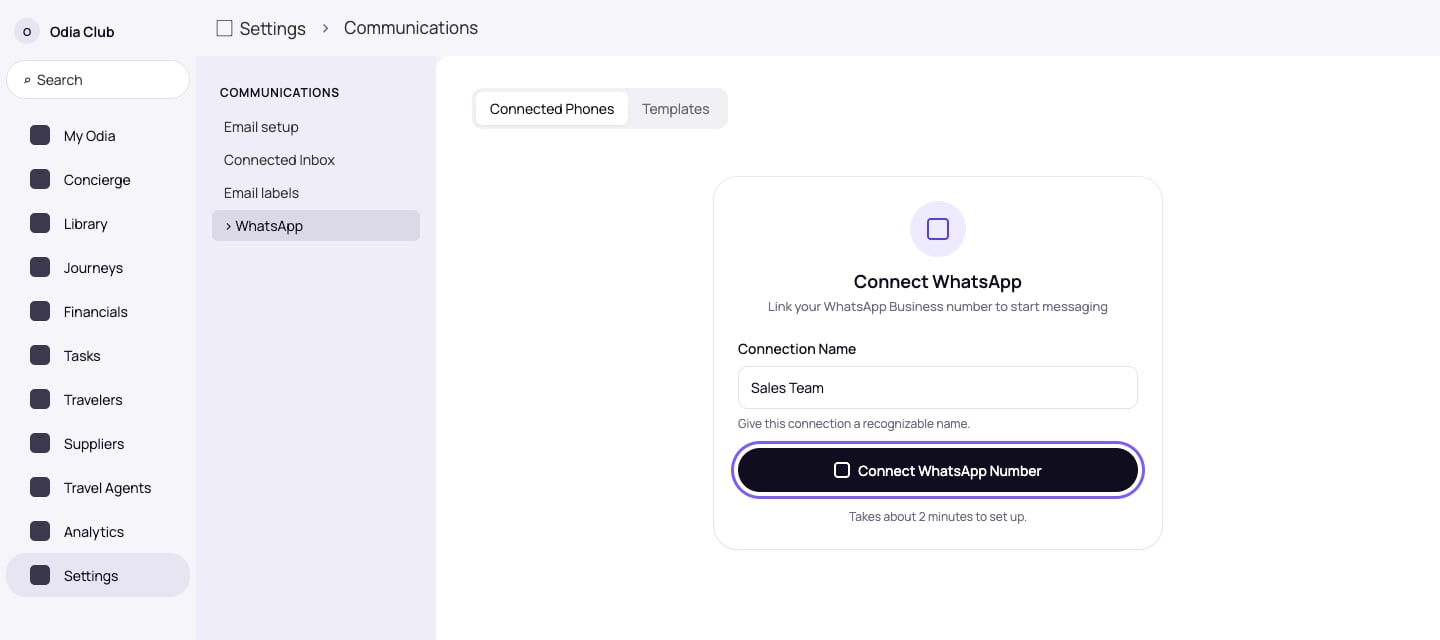
2
Get your QR code
A card for the new connection appears with the Pending Setup badge. Select Get QR code.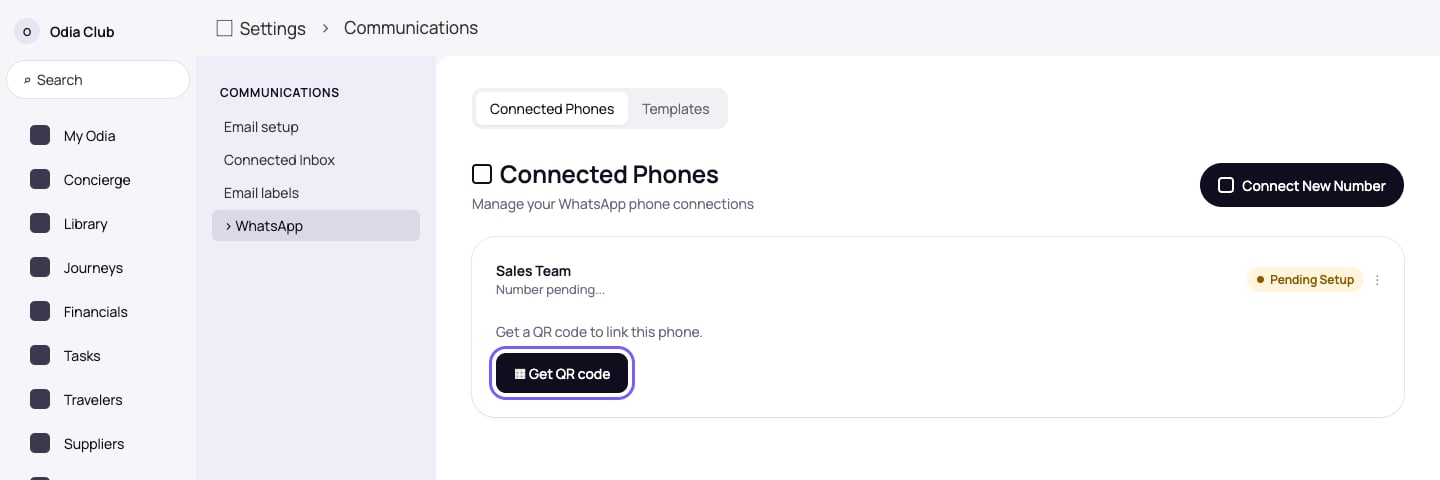
3
Open Linked Devices on your phone
Open WhatsApp on your phone, go to Settings → Linked Devices, then tap Link a Device.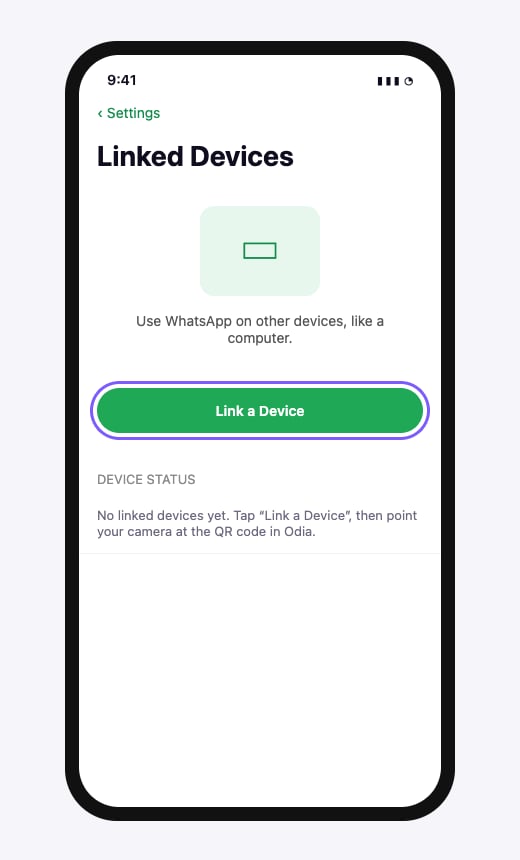
4
Scan the QR code
Point your phone camera at the QR code in Odia, then wait for the connection to complete. Keep the Odia page open while you scan.The timer on the QR code shows how long it stays valid. If it runs out, select Get new QR and scan the new code.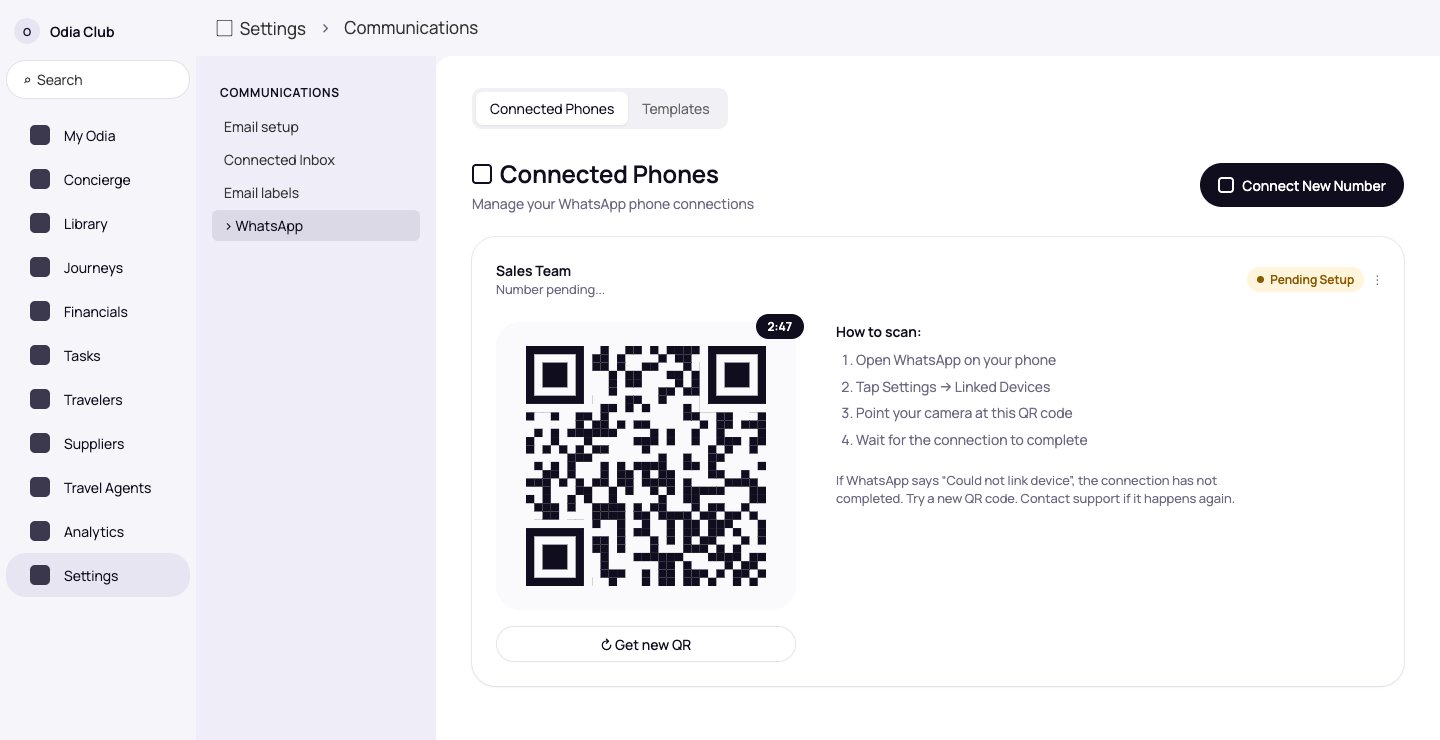
5
Check that the number is connected
You will see WhatsApp connected! and the card badge changes to Connected. Your number replaces Number pending… on the card.Odia then shows Syncing recent conversations… while it brings in your recent chats.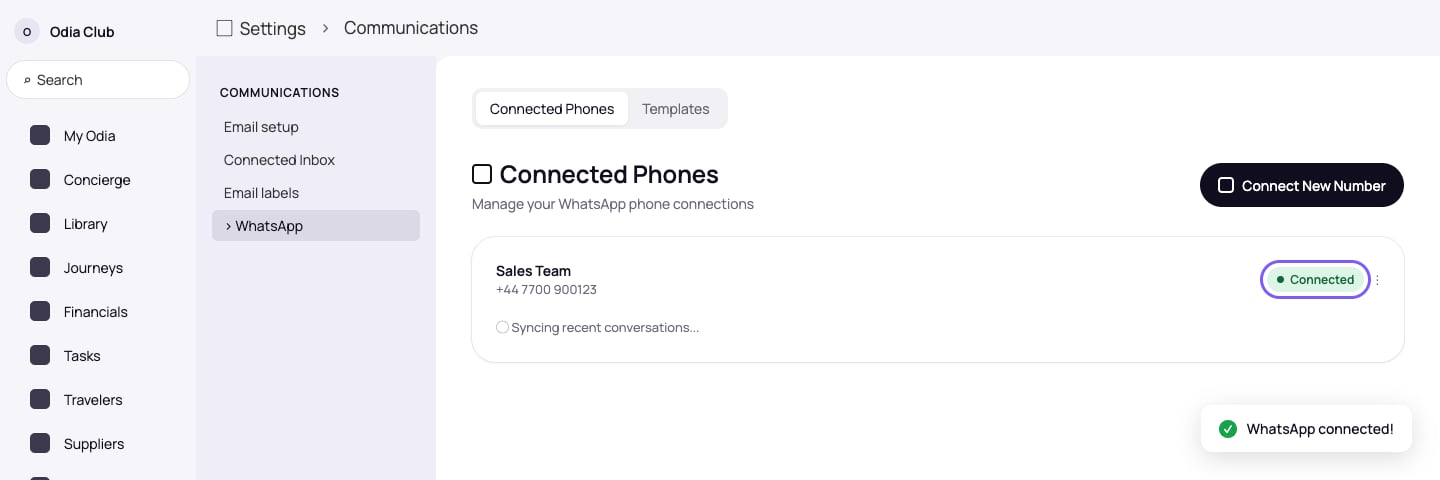
If something goes wrong
Need help? Email customer@odia.app.