

Which one your client gets
The Journey’s pricing decides it. You set pricing in the Journey preview, under Display settings → Pricing.
Both are set up in Review settings , a button in the Journey preview toolbar. Only people who can edit Journeys see it.
Turn on quote acceptance
Quote acceptance needs a Journey total above zero. Until there is one, Review settings shows Add a positive Journey total.1
Open the Journey preview
On the Journey, select the eye preview button.
2
Show the total only
Open Display settings and turn on Show total only under Pricing.
3
Turn on Quote acceptance
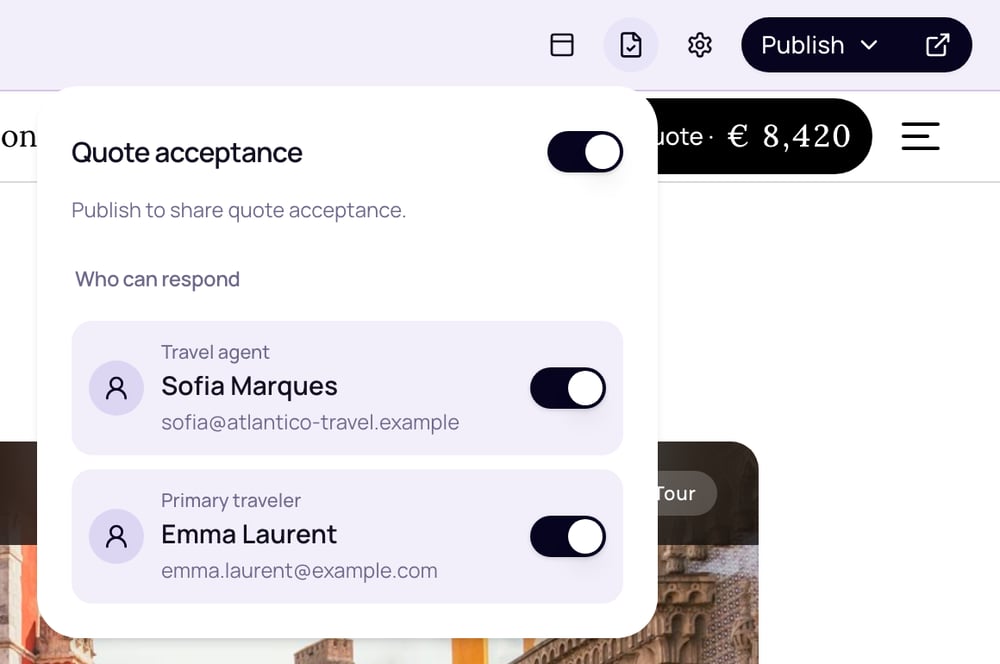
Select Review settings. The panel is titled Quote acceptance. Turn on the switch next to the title.
4
Choose who can respond
Under Who can respond, turn on the Travel agent, the Primary traveler, or both. These are the travel agent contact and the primary traveler saved on the Journey. Only the people you turn on can accept the quote.
5
Publish the Journey
Until you publish, the panel shows Publish to share quote acceptance. Your client can accept once the published version has quote acceptance.
Turn on cart selection
1
Keep prices itemized
In the Journey preview, open Display settings and leave Hide all prices and Show total only off, so each service shows its price.
2
Turn on Cart selection
Select Review settings. The panel is titled Cart selection. Turn on the switch, then choose Who can respond as you would for a quote.
3
Publish the Journey
Your client confirms their selection on the published Journey, so publish it if you haven’t yet.
What your client does
Accept a quote
1
Open the quote
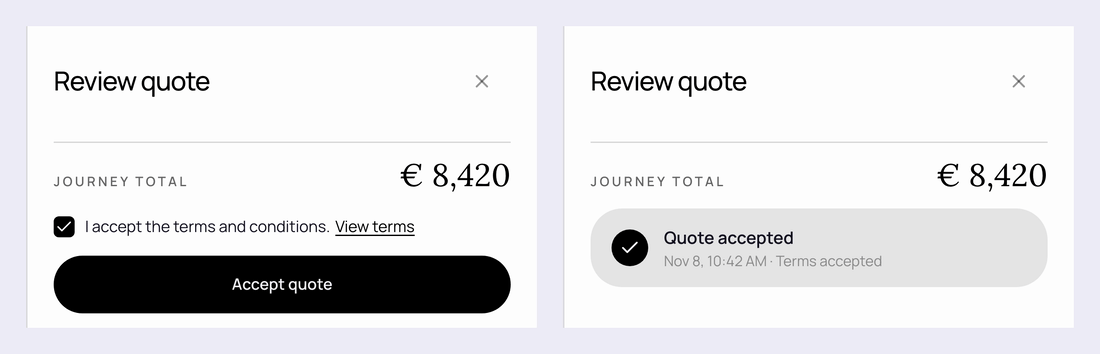
Your client opens the Journey link and selects Review quote at the top of the page. It shows the Journey total.
2
Accept
They tick I accept the terms and conditions. and select Accept quote. If your organization has no terms, the box reads I accept this quote. instead.
3
Confirm it's them
The first time, Odia asks them to confirm it’s them. They enter their email address, select Email me a code, and type the code from the email. The address must be the one saved on a contact you allowed. Once the code is accepted, the quote is accepted.
Confirm a selection
Your client opens the Journey link and selects Review selection. When commenting is also on, the button reads Review & feedback. They untick each service they don’t want. The panel updates the total and counts what is kept, for example 5 included · 1 removed. Then they tick the terms box, select Confirm selection, and confirm it’s them with an emailed code, as for a quote. The panel shows Selection confirmed. If they change their selection afterwards, the button reads Confirm updated selection, and their new confirmation replaces the previous one.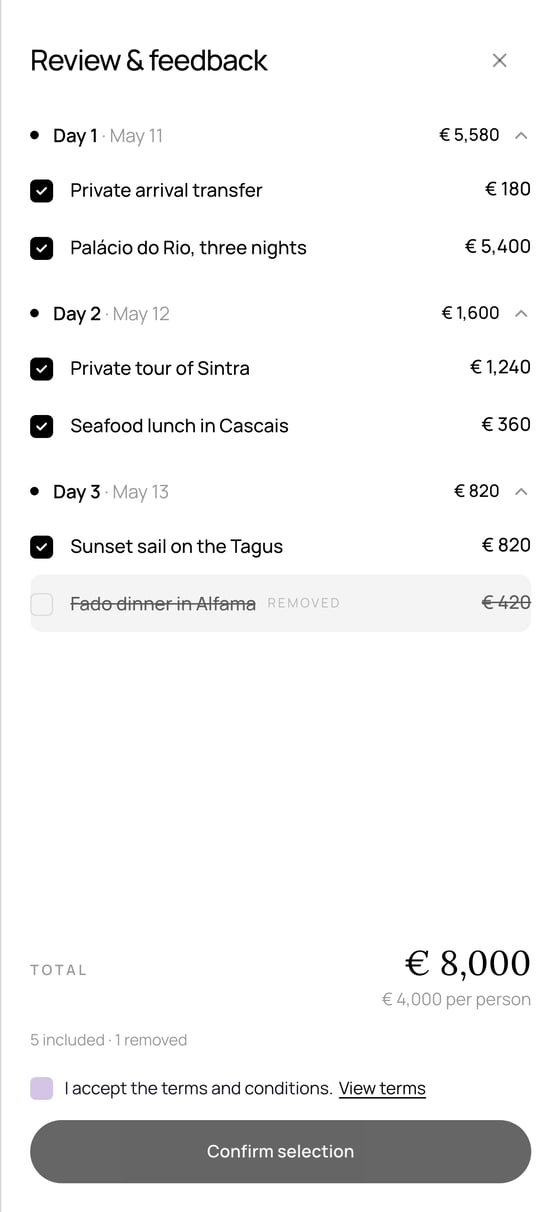
See their answer
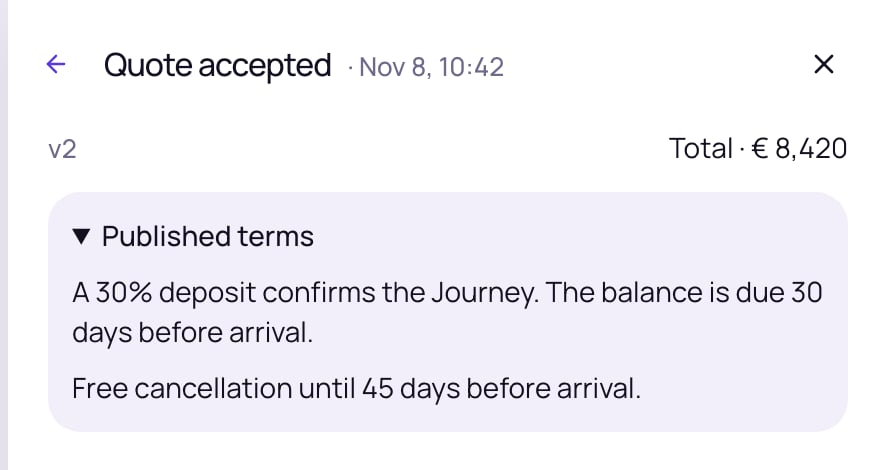
Once the Journey is published, a chip beside the Journey’s reference sums up the latest activity, for example Quote accepted · 1h ago. Select it to open Link activity, then select the answer under Responses:- For a quote, you see the version they accepted, the Total, and the Published terms they accepted.
- For a selection, you see each day’s services, including the ones they removed.
Good to know
- Accepting doesn’t confirm the Journey. An accepted quote or a confirmed selection records your client’s answer. It does not change the Journey’s status and does not take a payment. Change the status yourself when you are ready.
- An answer belongs to one published version. Once a quote is accepted, it stays accepted for that version. If you publish again, Link activity notes Published again since. Ask your client to accept or confirm the new version.
- Only the current version can be answered. A link to an older published version cannot be used to accept a quote or confirm a selection.
- Only the people you chose can answer. Anyone with the link can still view the Journey, but the email check only accepts the address of a contact you allowed.
Journey Designer
Pricing and the other display settings your client sees.
Journeys
Saving, publishing and the public link.